Portable 4K Projector Setup: Autofocus, Android & BT
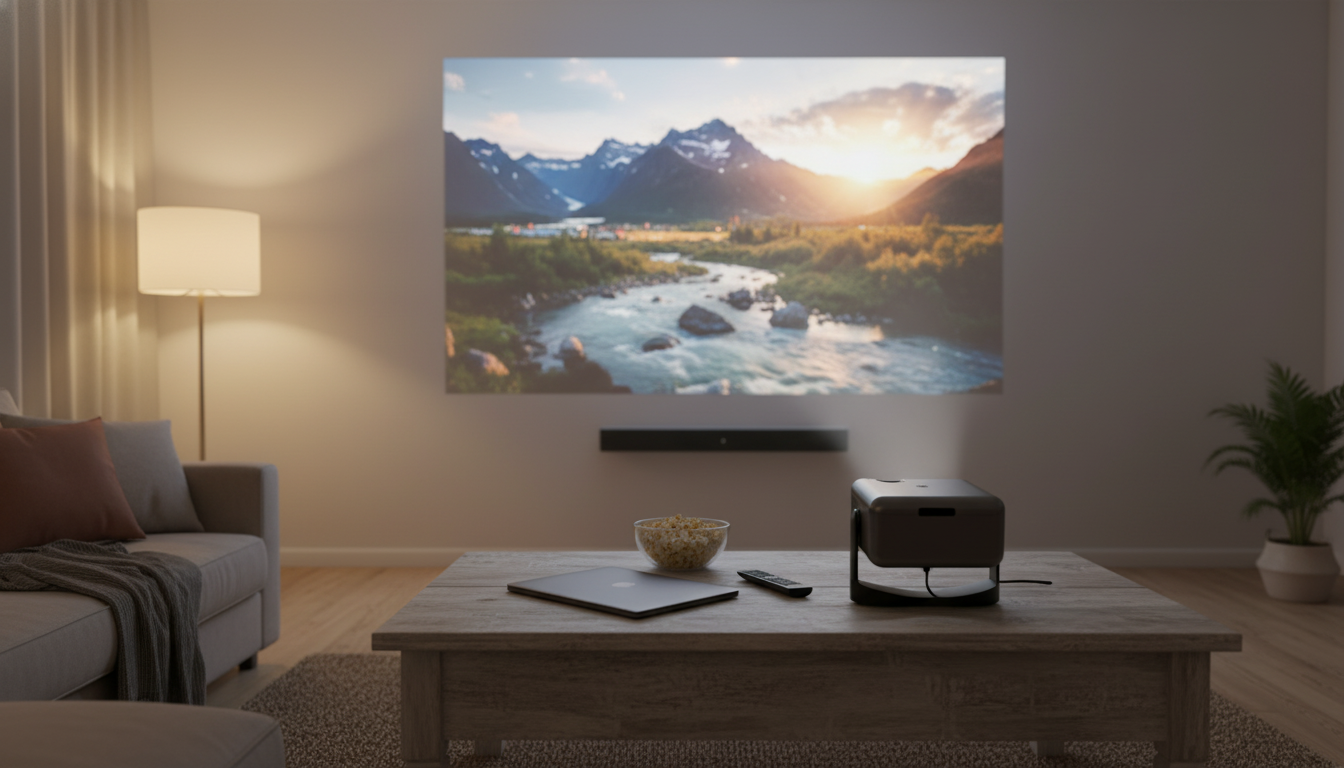
4K Portable Home Projector Setup: From Living Room Movie Nights to Backyard Cinema
A compact projector can turn a blank wall into a movie night, a game screen, or a travel-ready entertainment hub. The difference between “cool idea” and a setup you actually use comes down to a few practical details: focus speed after you move it, wireless audio that doesn’t fight you, built-in apps that reduce clutter, and placement flexibility that works in real rooms. Below is a straightforward guide to getting a sharp picture and easy sound with a portable projector—whether it’s on a coffee table indoors or on a stand outside.
What Makes This Projector a Practical “Grab-and-Go” Cinema
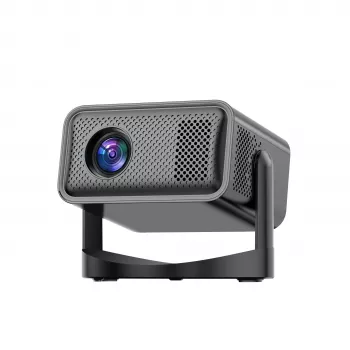
A portable home projector works best when it feels effortless. A compact body makes it realistic to move between the bedroom, living room, dorm, or backyard without turning setup into a project. Auto focus is the real time-saver: when you reposition the unit (even slightly), it can quickly lock sharpness again so subtitles and UI text stay crisp.
Built-in Android 11 adds convenience by letting many users stream right on the projector without immediately reaching for a separate stick or box. And when built-in speakers aren’t enough—especially outdoors—Bluetooth pairing makes it easy to send audio to a larger speaker or headphones. If you’re looking for a simple, flexible option, consider the 4K Portable Home Projector with Auto Focus, Bluetooth, Android 11 & 360° Cinema for quick “set it down and play” sessions across different rooms.
Fast Start: Placement, Power, and Getting a Sharp Picture
Start with stability. A level surface and a centered aim toward the screen/wall reduce distortion and help the image look evenly sharp from corner to corner. After every move, let auto focus complete its cycle before judging clarity—then re-run it if you adjust distance or angle again. For contrast, dim the room and keep bright lights off the screen; a small lamp behind seating often feels cozy without washing out the picture.
For outdoor viewing, a matte screen or smooth light-colored wall helps the picture look cleaner than a textured surface. Try to keep ambient lights behind the projector (not shining toward the screen), and ensure ventilation is unobstructed—avoid placing the projector on soft bedding or thick fabric that can block airflow.
| Step | What to do | Why it helps |
|---|---|---|
| 1. Position | Place projector level and centered to the screen/wall | Reduces keystone distortion and edge blur |
| 2. Distance | Move closer/farther to reach preferred screen size | Improves clarity and brightness at usable sizes |
| 3. Focus | Wait for auto focus; re-run after moving | Locks in sharp text and subtitles |
| 4. Lighting | Darken room; avoid direct light on screen | Boosts perceived contrast and color |
| 5. Sound | Pair Bluetooth speaker/headphones if needed | Improves dialogue clarity and bass impact |
If you’re unsure about a comfortable screen size for your space, a projection calculator can help visualize distance and diagonal size before you rearrange furniture. ProjectorCentral’s tool is a useful reference: ProjectorCentral — Projector Screen Size Guide.
Android 11 Built-In: Streaming, Apps, and Everyday Controls
Some streaming services can behave differently depending on device certification, casting rules, or resolution limits. If a specific app doesn’t cooperate, a dedicated HDMI streaming device is an easy workaround, and it can also simplify logins if you already use one on another TV. Periodic app and system updates can improve stability and compatibility over time. For background on the platform, see: Android 11 overview (Android Developers).
Bluetooth Audio: Pairing Speakers and Headphones Without Hassle
If you notice slight lip-sync delay, it’s usually Bluetooth latency. Check whether your speaker/headphones offer a low-latency mode, and keep the connection clean by placing the audio device within a reasonable range and line of sight. When timing matters most (like rhythm games), using a wired path through your source device or HDMI audio routing can reduce delay. For technical background, Bluetooth specifications are maintained by the Bluetooth SIG: Bluetooth Core Specification (Bluetooth SIG).
Connectivity and Sources: Phone, Laptop, Console, and USB Playback
Getting the “360° Cinema” Feel: Room Layout Tips That Matter
If you’re building a cozy, multi-use corner (snacks, seating, and a spot to set the projector), the home layout ideas in The Cozy Corner That Changes Mornings: Ultimate Breakfast Nook with Banquette Seating Guide can help plan a comfortable viewing-and-hangout zone that transitions easily from daytime to movie night.
Common Issues and Quick Fixes
Troubleshooting guide
| Symptom | Likely cause | Try this |
|---|---|---|
| Image looks soft | Projector not level or too angled | Level placement, re-position, run auto focus again |
| Subtitles hard to read | Ambient light or oversized image | Darken room, reduce image size, adjust picture settings |
| Bluetooth audio drops | Distance/interference | Move speaker closer, reduce obstacles, re-pair |
| Streaming stutters | Weak Wi‑Fi | Improve Wi‑Fi signal or use HDMI streaming stick |
| Input not detected | Cable/port mismatch | Swap HDMI cable, reselect input, test another source |
Who It’s Best For (and When to Use Something Else)
FAQ
Does Android 11 mean streaming works without any extra device?
Built-in Android apps can handle many streaming and playback needs directly on the projector. Some services may still have limitations, so an HDMI streaming stick can be a helpful fallback for compatibility or preferred apps.
Will Bluetooth speakers have audio delay for movies or gaming?
Bluetooth can introduce latency depending on the devices and codec support. If delay is noticeable, try a low-latency mode (when available), move the speaker closer, or use a wired/HDMI audio path when timing is critical.
How can the sharpness stay consistent when moving the projector between rooms?
Auto focus is the main feature that keeps the image sharp after repositioning. For best results, keep the projector level, avoid extreme angles, and re-run focus after each move or distance change.








Leave a comment