Most Realistic AI Photo Editing: What to Look For
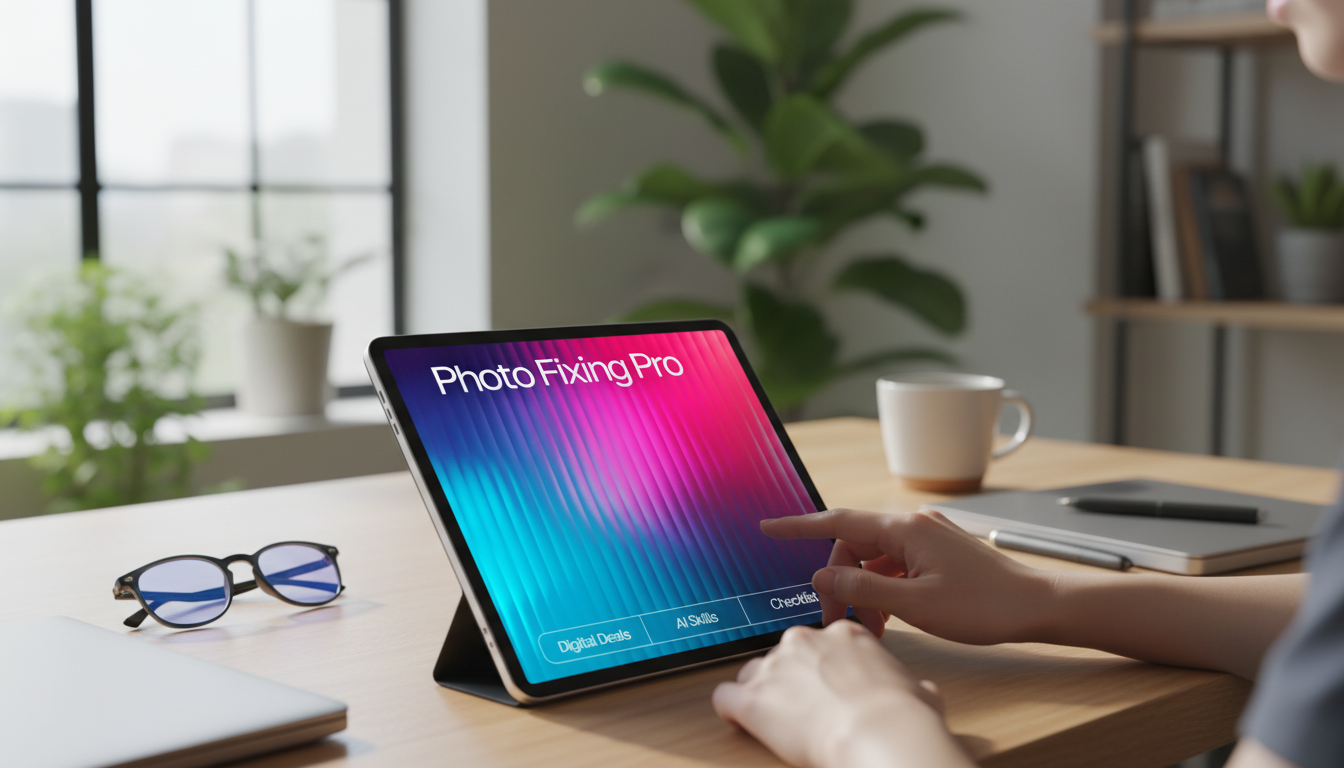
What is the most realistic AI for photos?
The most realistic AI for photos is the one that makes changes so subtle they’re hard to spot: it improves lighting, color, and small distractions without reshaping faces, smearing skin texture, or creating “too perfect” details. In practice, realism comes less from a single brand name and more from using tools that prioritize natural tones, preserved texture, and controlled edits (especially for portraits).
For photorealistic results, look for AI features that focus on:
- Accurate color and white balance that keeps skin tones believable
- Noise reduction that preserves detail (hair, fabric, pores) instead of waxing everything smooth
- Smart object removal that doesn’t leave repeating patterns or strange edges
- Subtle sharpening that avoids crunchy halos
- Selective adjustments (editing the background separately from the subject)
Even the best AI can look fake when sliders are pushed too far. The most realistic workflow is usually “AI for cleanup, human for taste”: use AI to fix technical flaws, then dial back intensity until the photo still looks like it came from a camera, not a generator.
If the goal is natural-looking retouching (not an “AI look”), follow a step-by-step checklist that keeps edits controlled and consistent. See the full guide here: AI photo editing checklist: fix photo flaws without the AI look.
For Most Realistic AI Photo Editing: What to Look For, the best answer depends on fit, material, care instructions, and how the product will be used day to day.
Checking those details first helps avoid a poor match and keeps the choice practical after delivery.
For Most Realistic AI Photo Editing: What to Look For, the best answer depends on fit, material, care instructions, and how the product will be used day to day.
FAQ
How can you keep AI-edited photos from looking over-processed?
Lower the strength of smoothing, sharpening, and clarity until skin and textures look real again, then compare to the original at 100% zoom. Make edits locally (only where needed) and avoid stacking multiple “enhance” tools on the same area.









Leave a comment